Fix: Shopify Invalid OAuth Callback
What This Error Means
The "Shopify Invalid OAuth Callback" error occurs when your application attempts to authenticate with a Shopify store, but the callback URL provided doesn't match what's registered in your Shopify app configuration. OAuth (Open Authorization) is Shopify's security protocol that allows third-party applications to access store data safely. When this process breaks down, you'll typically see an error message stating that your redirect URI is invalid or mismatched.
This error is Shopify's way of protecting store data from unauthorized access. Think of it as a security checkpoint: when your app tries to complete the authentication handshake, Shopify verifies that the callback URL matches exactly what you've whitelisted in your app settings. If there's even a slight difference—a missing trailing slash, different protocol (HTTP vs HTTPS), or a typo in the domain—Shopify will reject the request and throw an invalid OAuth callback error.
The error typically appears during the app installation process, when users click "Install App" on your Shopify app or when you're testing your application in development. Understanding the root cause is essential for quickly resolving this issue and getting your app back online in 2026.
Why You're Seeing This
- Redirect URI Mismatch: The callback URL in your app code doesn't exactly match the URL registered in your Shopify app settings. This is the most common cause.
- Protocol Mismatch: Your app uses HTTPS in settings but HTTP in the code (or vice versa). Shopify requires consistent protocol usage.
- Trailing Slash Inconsistency: One URL has a trailing slash (example.com/callback/) while the other doesn't (example.com/callback). Shopify treats these as different URLs.
- Domain Changes: Your development domain has changed, your app was moved to a different server, or DNS hasn't propagated yet.
- Port Number Issues: During development, using localhost:3000 vs localhost:8080 or forgetting to include the port number in your registered callback URL.
- Subdomain Problems: Switching between www.example.com and example.com, or using different subdomains than what's registered.
- URL Encoding Issues: Special characters in the callback URL aren't properly encoded or decoded.
- Shopify App Settings Not Saved: Changes to your callback URL in the Shopify Partner dashboard weren't properly saved before testing.
- Multiple Apps Conflict: Running multiple app instances with different callback URLs pointing to the same Shopify store.
- API Version Mismatch: Using an outdated OAuth implementation that doesn't align with current Shopify API standards.
How to Fix It
Step 1: Identify Your Correct Callback URL
First, determine what your callback URL actually is. This is typically where your app receives the authorization code from Shopify. For most applications, it follows this pattern: https://yourapp.com/auth/callback or https://yourapp.com/shopify/callback. Write this down exactly as it appears in your code, including the protocol (HTTPS or HTTP), domain, port number (if applicable), and path.
Step 2: Access Your Shopify App Settings
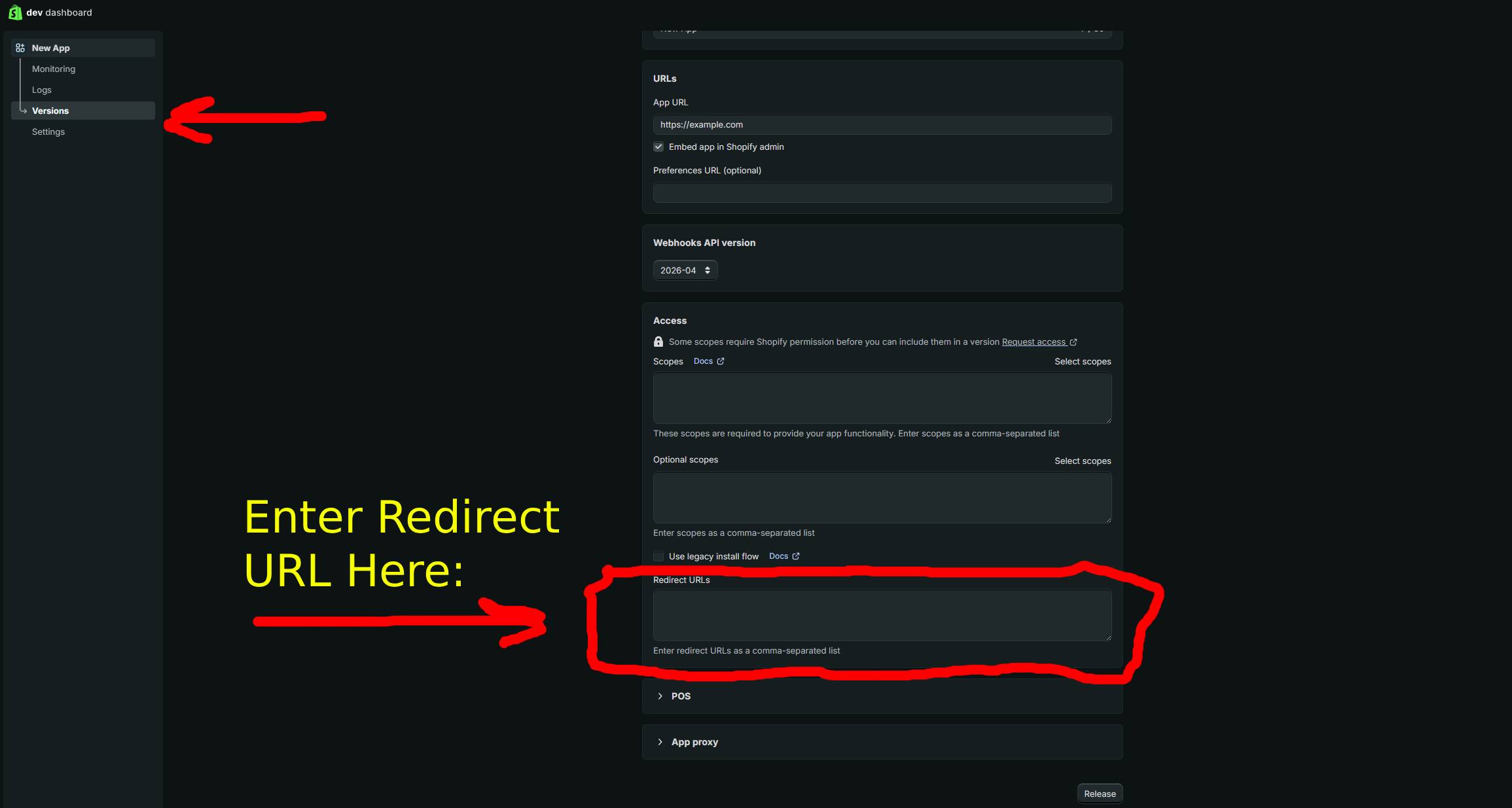
Log in to your Shopify Partner account and navigate to your app. Click on "Configuration" or "App setup" depending on your Shopify admin interface version. Look for the section labeled "OAuth credentials," "Redirect URLs," "Allowed redirect URIs," or "Callback URLs."
Step 3: Update the Callback URL in Shopify Settings
In the redirect URLs field, enter your callback URL exactly as it appears in your application code. Ensure you include:
- The complete protocol (https:// or http://)
- The exact domain name (including or excluding www as appropriate)
- The correct port number if using one (e.g., :3000 for development)
- The exact path without extra slashes
For example, if your app is running locally on port 3000, you might register: http://localhost:3000/auth/callback
Step 4: Verify Your Application Code
Open your application code and locate where you're setting the redirect URI for OAuth. This is typically in your authentication middleware or configuration file. Here's a code example showing proper OAuth callback configuration:
// Node.js/Express Example
const shopify = shopifyApp({
  apiKey: process.env.SHOPIFY_API_KEY,
  apiSecret: process.env.SHOPIFY_API_SECRET,
  scopes: ['write_products', 'read_orders'],
  host: process.env.SHOPIFY_APP_URL,
  redirectPath: '/auth/callback',
});

// Make sure redirectPath matches what's registered in Shopify Partner settings
// The full callback URL will be: {host}{redirectPath}
// Example: https://myapp.example.com/auth/callback

// For Python/Flask
from shopify_app.decorators import shopify_login_required
from flask import redirect, url_for

SHOPIFY_API_KEY = 'your_api_key'
SHOPIFY_API_SECRET = 'your_api_secret'
SHOPIFY_APP_URL = 'https://myapp.example.com'  # Must match registered URL
REDIRECT_URI = 'https://myapp.example.com/auth/callback'  # Must match Shopify settings

# For PHP/Laravel
'shopify' => [
    'api_key' => env('SHOPIFY_API_KEY'),
    'api_secret' => env('SHOPIFY_API_SECRET'),
    'api_version' => '2024-01',
    'redirect_uri' => 'https://myapp.example.com/auth/callback',
    'scopes' => ['write_products', 'read_orders'],
],
Step 5: Test the Callback Handler
Ensure your application properly handles the callback request from Shopify. Your callback endpoint should:
- Accept GET requests
- Extract the authorization code from the query parameters
- Exchange the code for an access token using your API secret
- Store the access token securely
- Redirect the user to your app's dashboard
Step 6: Clear Cache and Test Again
After updating your callback URL in Shopify settings, wait 1-2 minutes for the changes to propagate. Clear your browser cache and cookies, then attempt to install or reinstall your app. Test in an incognito/private browser window if possible to ensure no cached credentials are interfering.
Step 7: Use HTTPS in Production
Ensure you're always using HTTPS (encrypted connection) for production environments. Shopify requires HTTPS for security reasons. If you're testing locally with HTTP, make sure your registered callback URL uses HTTP as well.
The 60-Second Fix
If you need a quick solution without diving deep into code, here's the fastest approach:
- Go to Shopify Partner Dashboard → Your App → Configuration
- Find the "Redirect URLs" or "Callback URLs" section
- Compare what's listed there with your actual app's callback URL
- If they don't match exactly, update the Shopify settings to match your code
- Save changes and wait 1-2 minutes
- Test the OAuth flow again
Tools like getshopifytoken.com can automate this verification step by testing your callback configuration and identifying discrepancies automatically, saving you valuable debugging time if you're managing multiple apps or environments.
Common Mistakes
- Forgetting the Protocol: Entering "example.com/callback" instead of "https://example.com/callback" in your Shopify settings. Shopify requires the full URL including https://
- Inconsistent Slashes: Registering "https://example.com/callback/" with a trailing slash but your code redirects to "https://example.com/callback" without one. These must match exactly.
- Using Localhost in Production: Testing with localhost:3000 in development but forgetting to update the callback URL when deploying to production. Your production URL must be registered in Shopify settings.
- Not Waiting for Changes to Propagate: Making changes to your callback URL in Shopify settings and immediately testing without allowing 1-2 minutes for the changes to take effect.
Frequently Asked Questions
Q: Can I have multiple callback URLs registered for one Shopify app?
Yes, most Shopify app frameworks allow you to register multiple callback URLs. This is useful when you have different environments (development, staging, production). In your Shopify Partner settings, you can often add multiple URLs separated by commas or on different lines. Each URL must be exactly matched by your application code when performing the OAuth flow for that environment.
Q: Why does Shopify require exact URL matching for callbacks?
Exact URL matching is a critical security feature. It prevents attackers from registering your app on their own server and using a different callback URL to intercept authorization codes. By requiring exact matches, Shopify ensures that only your legitimate server receives the authorization code, protecting merchant data from unauthorized access.
Q: I'm using a development server with a self-signed SSL certificate. How can I test HTTPS locally?
For local testing, you have several options: use ngrok to expose your local server to the internet with a public URL (register that URL in Shopify settings), use tools like localhost.run or expose.sh, or configure your local development environment with a proper self-signed certificate and register "https://localhost:3000/auth/callback" in your Shopify settings if the framework supports it. Many developers prefer ngrok because it gives you a real HTTPS URL that you can register exactly in Shopify.
Q: How long does it take for callback URL changes to take effect?
Changes to your callback URL in Shopify Partner settings typically take effect within 1-2 minutes. However, it's good practice to wait a few minutes and clear your browser cache before retesting. If you're still experiencing issues after 5 minutes, try logging out of the Shopify Partner dashboard and logging back in to ensure the changes are fully synced.
Q: What if I'm still getting the error after matching all URLs?
Double-check that you're using the same Shopify app credentials (API key and secret) in your code. Make sure you're not testing with a different app's credentials. Also verify that your app's OAuth scopes are correctly configured and that you're not blocking the callback endpoint with any firewall or middleware rules.