How to Get a Shopify Access Token for API Integration
A Shopify access token is a critical credential that allows your applications, third-party tools, and custom scripts to securely communicate with your Shopify store's API. Whether you're building a custom app, integrating inventory management systems, or automating order fulfillment, understanding how to generate and manage Shopify access tokens is essential for seamless API integration.
In 2026, Shopify's authentication system remains one of the most robust e-commerce platforms available. This comprehensive guide walks you through generating access tokens, understanding API scopes, and troubleshooting common issues.
What You Need
- A Shopify store (any plan: Basic, Shopify, Advanced, or Plus)
- Admin access to your Shopify store dashboard
- Understanding of which API scopes your integration requires
- A development or staging environment to test token generation (recommended)
- Basic knowledge of REST APIs or GraphQL (depending on your use case)
- A secure method to store and manage tokens (environment variables, secure vaults, etc.)
Required API Scopes
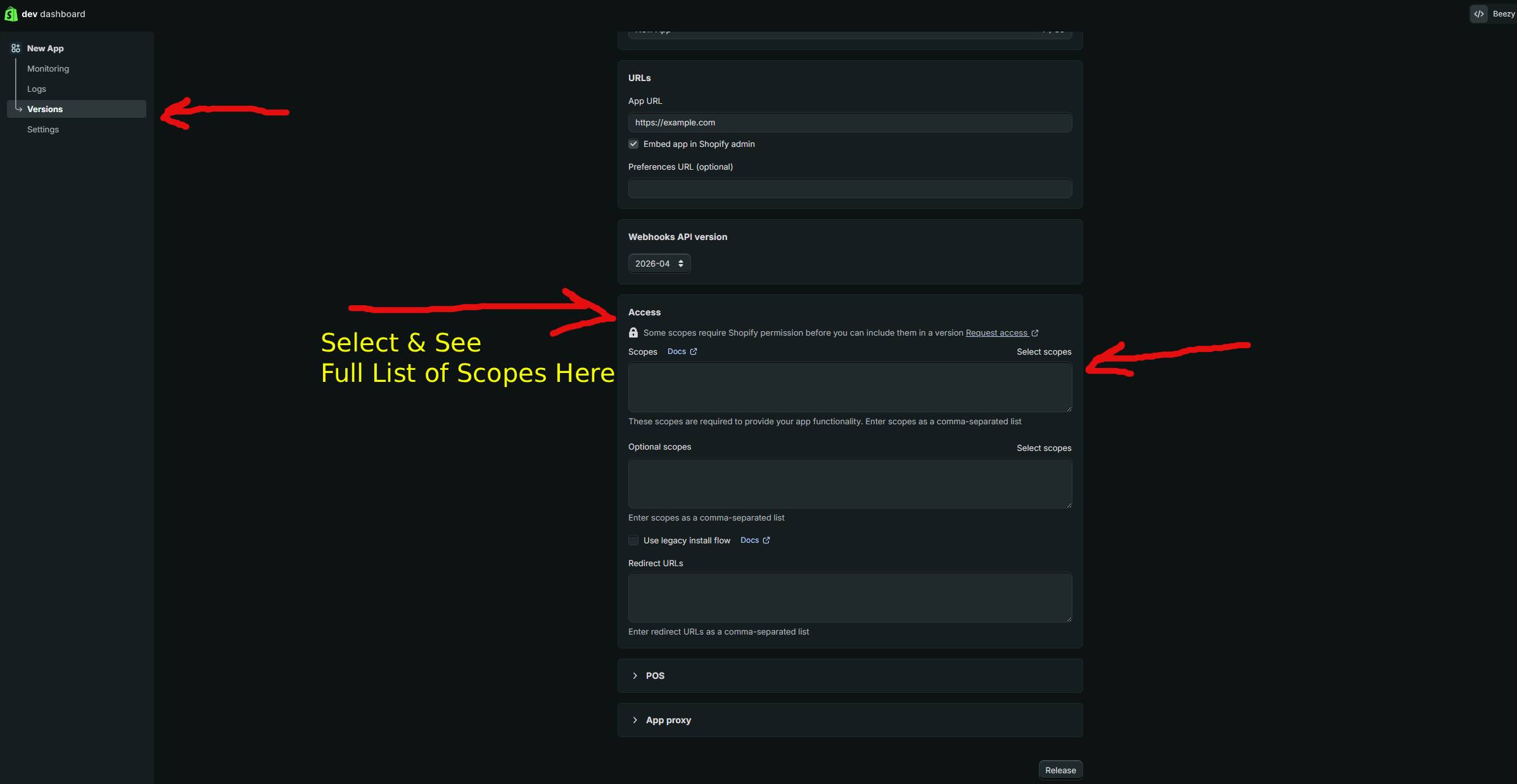
API scopes define the permissions your access token has. Shopify follows the principle of least privilege, meaning you should only request the scopes your integration actually needs. Here are the most commonly used scopes:
| Scope | What It Allows |
|---|---|
| read_products | Read access to product data, including titles, descriptions, variants, and pricing information |
| write_products | Full access to create, update, and modify product information in your store |
| read_orders | Read access to order data, including customer information, line items, and order status |
| write_orders | Ability to create, update, and fulfill orders programmatically |
| read_customers | Read access to customer data, including names, emails, and purchase history |
Step-by-Step Guide
Method 1: Using Private Apps (Custom Apps in Admin)
- Log in to Your Shopify Admin
Navigate to your Shopify admin dashboard at https://admin.shopify.com and sign in with your credentials. - Access the Apps and Integrations Section
In the left sidebar, scroll down and click on "Apps and integrations" or "Settings" depending on your store configuration. Then select "Develop apps" or "Apps." - Create a New App
Click the "Create an app" button. You'll be prompted to enter basic information about your application. - Name Your App
Enter a descriptive name for your app (e.g., "Inventory Management Integration" or "Order Fulfillment Bot"). This name helps you identify the token's purpose later. - Select Your Use Case
Shopify will ask you to categorize your app. Choose the option that best matches your integration needs (e.g., "Sales channels," "Shipping and fulfillment," "Inventory management," etc.). - Configure API Credentials
Once your app is created, you'll see an "API credentials" section. Here, you'll find your API key and the option to generate an access token. - Define Required Scopes
Click on the "Configuration" tab and scroll to the "Admin API access scopes" section. Select only the scopes your integration needs. For example, if you're reading product data only, select "read_products." If you're managing orders, select both "read_orders" and "write_orders." - Save and Generate Token
After selecting your scopes, scroll down and click "Save." Shopify will now show you your access token in the "Admin API access tokens" section. Click "Reveal" to display the full token. - Copy and Store Your Token Securely
Copy your access token and store it in a secure location. Use environment variables or a secrets management system (like GitHub Secrets, AWS Secrets Manager, or HashiCorp Vault) rather than hardcoding it in your application.
Testing Your Token with a Sample API Call
Once you've generated your token, test it with a simple API request to ensure it's working correctly:
curl -X GET "https://your-store.myshopify.com/admin/api/2024-01/products.json" \
  -H "X-Shopify-Access-Token: shpat_xxxxxxxxxxxxxxxxxxxxxxxx"
Replace "your-store" with your actual store name and "shpat_xxxxxxxxxxxxxxxxxxxxxxxx" with your generated access token. If successful, you'll receive a JSON response containing your store's products.
Using GraphQL with Your Token
If you prefer GraphQL queries, use this format:
curl -X POST "https://your-store.myshopify.com/admin/api/2024-01/graphql.json" \
  -H "X-Shopify-Access-Token: shpat_xxxxxxxxxxxxxxxxxxxxxxxx" \
  -H "Content-Type: application/json" \
  -d '{
    "query": "query { shop { name products(first: 10) { edges { node { id title } } } } }"
  }'
Using GetShopifyToken (Faster Method)
While the manual process above works well, it requires multiple steps and careful configuration of scopes. GetShopifyToken at https://getshopifytoken.com streamlines this entire process by automating token generation and scope management.
Instead of manually navigating Shopify's admin, selecting scopes, and copying tokens, GetShopifyToken guides you through an optimized workflow that takes just minutes. The platform securely generates your token, provides clear documentation of which scopes are enabled, and offers best practices for token storage and rotation.
For developers and businesses managing multiple Shopify stores or integrations, this faster method can save considerable time while reducing the risk of misconfiguration.
Common Issues
- Token Shows as "Revoked"
If your token displays a revoked status, it may have been automatically revoked due to inactivity or you manually revoked it. Generate a new token through the Admin API credentials section. - "Invalid API Credentials" Error
This typically means your access token is incorrect, expired, or doesn't have the required scopes. Verify you've copied the full token correctly and that the necessary scopes are enabled in your app configuration. - 403 Forbidden Response
Your token lacks the permissions needed for the requested operation. Review the required scopes for your API call and ensure they're enabled in your app settings. - Token Not Appearing in API Credentials
Ensure you've selected at least one API scope before clicking "Save." Shopify won't generate a token without defined scopes. - Apps and Integrations Section Missing
On newer Shopify stores, this section may be under "Settings" > "Apps and integrations" rather than the main sidebar. Check your store's current admin layout. - Token Works for Some Endpoints but Not Others
You're likely missing required scopes for certain endpoints. Review the API documentation for each endpoint you're using and add the necessary scopes to your app configuration.
Related Guides
- How to Revoke a Shopify Access Token (Best Practices for Security)
- Understanding Shopify API Scopes and Permissions in 2026
- Building Custom Shopify Apps: A Complete Developer Guide
Frequently Asked Questions
Q: How long does a Shopify access token remain valid?
Shopify access tokens don't have an expiration date; they remain valid indefinitely until you manually revoke them or delete the associated app. However, Shopify may revoke tokens for security reasons or if detected in public repositories. It's best practice to rotate your tokens periodically (at least annually) and immediately revoke any tokens that may have been exposed.
Q: Can I use the same access token across multiple applications?
Yes, technically you can share a single access token across multiple applications, but this is not recommended from a security standpoint. If one application is compromised, all applications sharing that token are at risk. Instead, create a separate app and access token for each integration. This allows granular scope management and easier revocation if needed.
Q: What's the difference between API keys and access tokens?
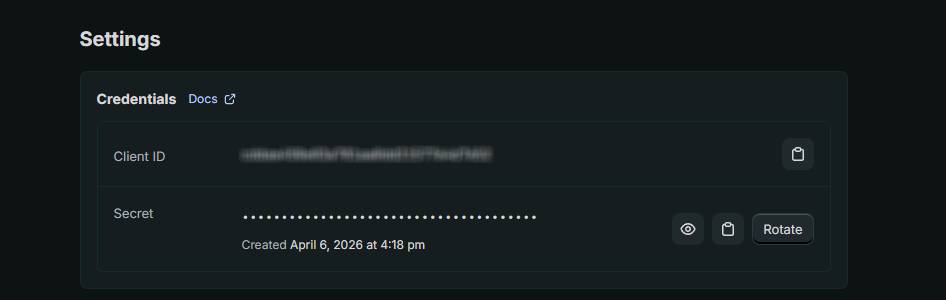
API keys are used for identifying your app to Shopify, while access tokens are used for authenticating API requests on behalf of your app. When making API calls, you use the access token in the "X-Shopify-Access-Token" header. API keys are typically used in OAuth flows for public apps, whereas access tokens are what you'll use for private or custom app integrations.
Q: Should I store my access token in environment variables?
Absolutely. Never hardcode your access token directly in your application source code. Always use environment variables, configuration files stored outside version control, or dedicated secrets management systems. This prevents accidental token exposure if your code is ever committed to a public repository.
Q: Can I generate multiple access tokens for the same app?
No, Shopify generates only one access token per app. If you need a new token, you must delete the old one first and generate a replacement. Plan your token management carefully to avoid service interruptions.
Get Your Shopify Access Token in 60 Seconds
Skip the manual OAuth flow. GetShopifyToken automates the entire process — just paste your credentials and get your token instantly.
Generate Token Now →