How to Get a Shopify Access Token for API Integration
Getting a Shopify access token is essential for developers, app creators, and merchants who want to integrate third-party applications with their Shopify store. Whether you're building a custom app, connecting inventory management software, or automating order processing, understanding how to obtain and use an x-shopify-access-token is crucial for secure API communication with your store.
In 2026, Shopify's authentication system has become more robust and developer-friendly. This comprehensive guide walks you through the entire process of obtaining a valid Shopify access token, understanding the required scopes, and implementing it securely in your applications.
What You Need
- A Shopify store with admin access (development, Plus, or any paid plan)
- Your Shopify store URL (format: yourstore.myshopify.com)
- Admin API credentials and app registration
- Understanding of OAuth 2.0 authentication flow (for merchant tokens)
- API scopes defined based on your use case
- A development environment or testing platform for API calls
- Basic knowledge of REST APIs and JSON format
- HTTPS endpoint if building a public app
Required API Scopes
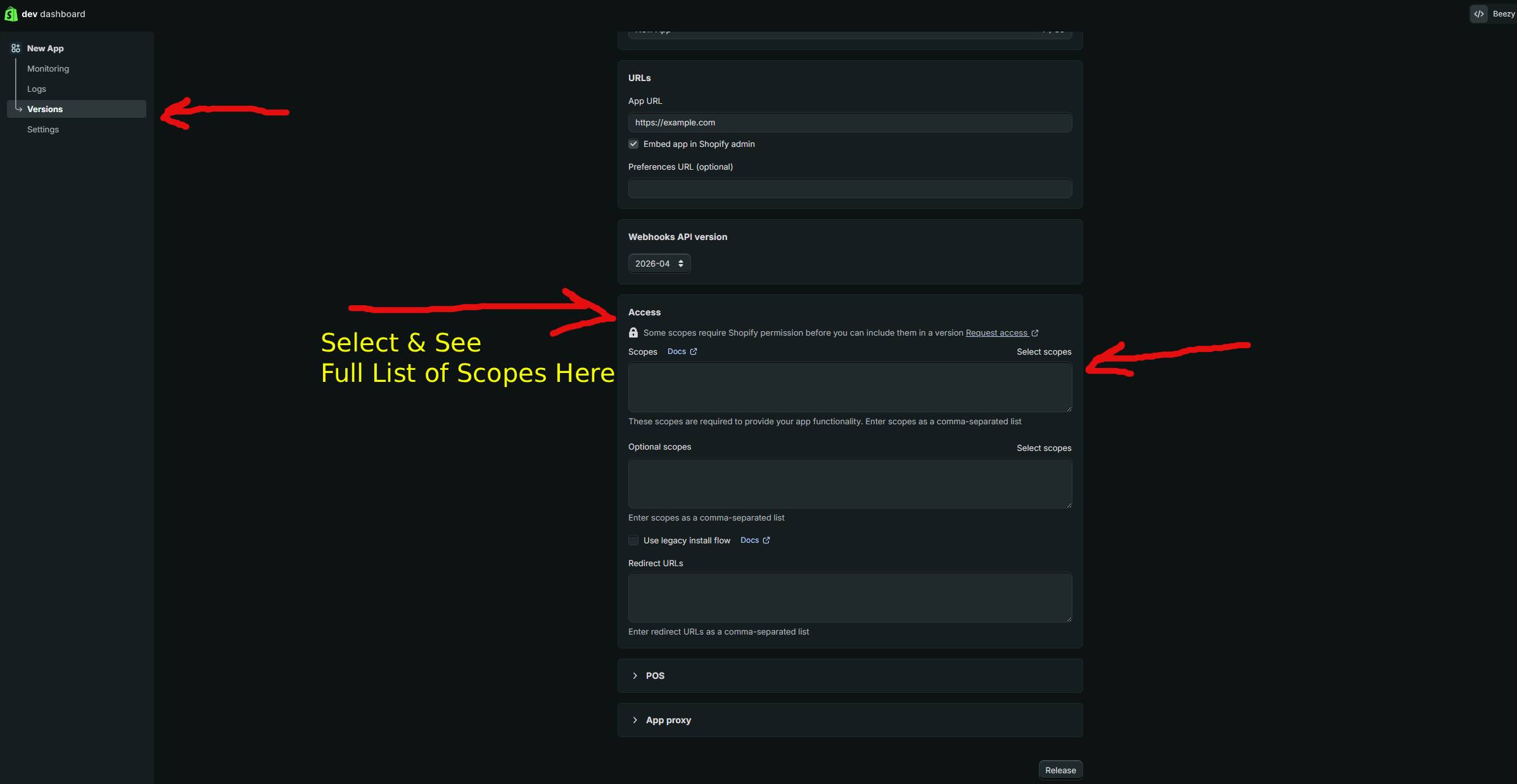
API scopes define what permissions your app has within the Shopify store. You must specify which scopes your token needs before generating it. Here are the most common scopes used in 2026:
| Scope | What It Allows |
|---|---|
| read_products | Read product information, titles, descriptions, variants, and pricing data |
| write_products | Create, update, and modify products and their variants in your store |
| read_orders | Access order details, customer information, and order history |
| write_orders | Create orders, update order status, and manage fulfillment |
| read_inventory | View inventory levels, stock status, and warehouse information |
| write_inventory | Update inventory quantities and manage stock levels across locations |
| read_customers | Access customer data, contact information, and purchase history |
| write_customers | Create new customers, modify customer information, and manage customer data |
Step-by-Step Guide
Step 1: Access Your Shopify Admin Dashboard
Log in to your Shopify admin dashboard using your store credentials. Navigate to the Settings menu, typically found at the bottom left of the admin panel. From Settings, look for the "Apps and integrations" or "Developer" section, which may be labeled differently depending on your Shopify plan and region.
Step 2: Create a New App
In the Apps and integrations section, click "Create an app" or "Develop apps." You'll be prompted to name your application and select whether it's a custom app or a public app. For most use cases in 2026, custom apps are the quickest way to get access tokens.
Custom apps are ideal for:
- Connecting your store to proprietary software
- Building internal automation tools
- Testing and development purposes
- One-off integrations with third-party services
Step 3: Configure Admin API Scopes
After creating the app, you'll see the "Configuration" tab. Scroll to the "Admin API scopes" section and select the specific scopes your application requires. Only request the minimum permissions necessary for your use case—this follows the principle of least privilege and keeps your store more secure.
For example, if you only need to read product data, select read_products. If you need to update inventory, add both read_inventory and write_inventory.
Step 4: Save and Install the App
Click "Save" to confirm your scope selections. Next, locate the "Installation" section and click "Install app." Shopify will ask you to confirm the permissions you're granting. Review the scopes carefully and confirm installation.
Step 5: Retrieve Your Access Token
Once installed, return to the app's configuration page. You'll now see the "Admin API access tokens" section with your newly generated token. This is your x-shopify-access-token. Copy it immediately and store it securely—you won't be able to view it again without regenerating a new token.
The token will appear in a format similar to this (this is a redacted example):
shpat_a1b2c3d4e5f6g7h8i9j0k1l2m3n4o5p6Step 6: Test Your Access Token with an API Call
Verify that your token works correctly by making a test API request. Use the following curl command, replacing placeholders with your actual store URL and access token:
curl -X GET "https://yourstore.myshopify.com/admin/api/2024-01/shop.json" \
  -H "X-Shopify-Access-Token: shpat_a1b2c3d4e5f6g7h8i9j0k1l2m3n4o5p6"
If successful, you'll receive a JSON response containing your shop information:
{
  "shop": {
    "id": 123456789,
    "name": "Your Store Name",
    "email": "owner@example.com",
    "created_at": "2024-01-15T10:30:00-05:00",
    "currency": "USD",
    "timezone": "America/New_York"
  }
}
Step 7: Implement the Token in Your Application
Store your access token securely in your application's environment variables or a secure configuration file. Never hardcode tokens directly into your source code or commit them to version control. In most programming languages, you'll include the token in the request header:
headers = {
  "X-Shopify-Access-Token": "shpat_a1b2c3d4e5f6g7h8i9j0k1l2m3n4o5p6",
  "Content-Type": "application/json"
}
Using GetShopifyToken (Faster Method)
If you find the manual token creation process time-consuming or need to generate multiple tokens frequently, https://getshopifytoken.com offers an automated solution that streamlines the entire process. This service handles the API scope configuration, token generation, and validation automatically, allowing you to get your x-shopify-access-token in seconds rather than minutes.
GetShopifyToken is particularly useful for developers who work with multiple Shopify stores or frequently create test environments. The platform abstracts away the complexity of the Shopify admin interface while maintaining full security and compliance with Shopify's authentication standards.
Common Issues
- Token Not Appearing: If your access token isn't visible after installation, refresh the page or reinstall the app. Ensure you have admin-level permissions on the Shopify store.
- 401 Unauthorized Errors: Double-check that your token is spelled correctly and included in the request header as "X-Shopify-Access-Token". Verify the token hasn't expired or been regenerated.
- 403 Forbidden Errors: Your token doesn't have the necessary scopes for the API endpoint you're trying to access. Return to the app configuration and add the required scopes.
- Scope-Related Issues: After adding new scopes, you may need to regenerate your access token. The old token won't automatically have the new permissions.
- Token Expired: Custom app tokens don't expire under normal circumstances, but regenerating a token invalidates all previous tokens from that app.
- Rate Limiting: If you receive 429 errors, you're hitting Shopify's API rate limits. Implement exponential backoff and request throttling in your application.
- HTTPS Required: If building a public app, your redirect URI must use HTTPS. Development environments with HTTP will be rejected during the OAuth flow.
Related Guides
- Understanding Shopify API Rate Limits in 2026
- Building a Secure Shopify App with Proper Token Management
- Migrating from Private Apps to Custom Apps and New Installation Experiences
- Shopify GraphQL Admin API vs REST API: Which Should You Use?
Frequently Asked Questions
Q: Can I use the same access token across multiple stores?
No, access tokens are store-specific. Each Shopify store requires its own token for API authentication. If you manage multiple stores, you'll need to generate separate tokens for each one and manage them independently in your application logic.
Q: How often should I regenerate my access token?
There's no automatic expiration for custom app tokens, so you don't need to regenerate them on a schedule. However, if you suspect a token has been compromised, regenerate it immediately. Note that regenerating a token invalidates all previous tokens from that app, potentially disrupting any integrations using the old token.
Q: Is my access token visible to anyone with admin access to my store?
Yes, anyone with admin access to your Shopify store can view all custom app access tokens. For this reason, limit admin access to trusted team members only, and consider using custom apps with minimal required scopes to reduce potential damage if a token is compromised.
Q: What's the difference between a custom app token and an OAuth token?
Custom app tokens are generated directly in the Shopify admin and are intended for private integrations with your own store. OAuth tokens are generated through the OAuth 2.0 flow and are designed for public apps that merchants install from the Shopify App Store. Public apps use OAuth because the app creator doesn't have direct admin access to each merchant's store.
Q: Can I use a Shopify access token with GraphQL API?
Yes, the same x-shopify-access-token works with both REST and GraphQL APIs. Simply include it in the header with the same key: "X-Shopify-Access-Token". The scopes you define apply to both API types equally.
Get Your Shopify Access Token in 60 Seconds
Skip the manual OAuth flow. GetShopifyToken automates the entire process — just paste your credentials and get your token instantly.
Generate Token Now →